

The inventory opens as a console of three columns under a tab bar. This page walks through each part, the player settings and every shortcut.
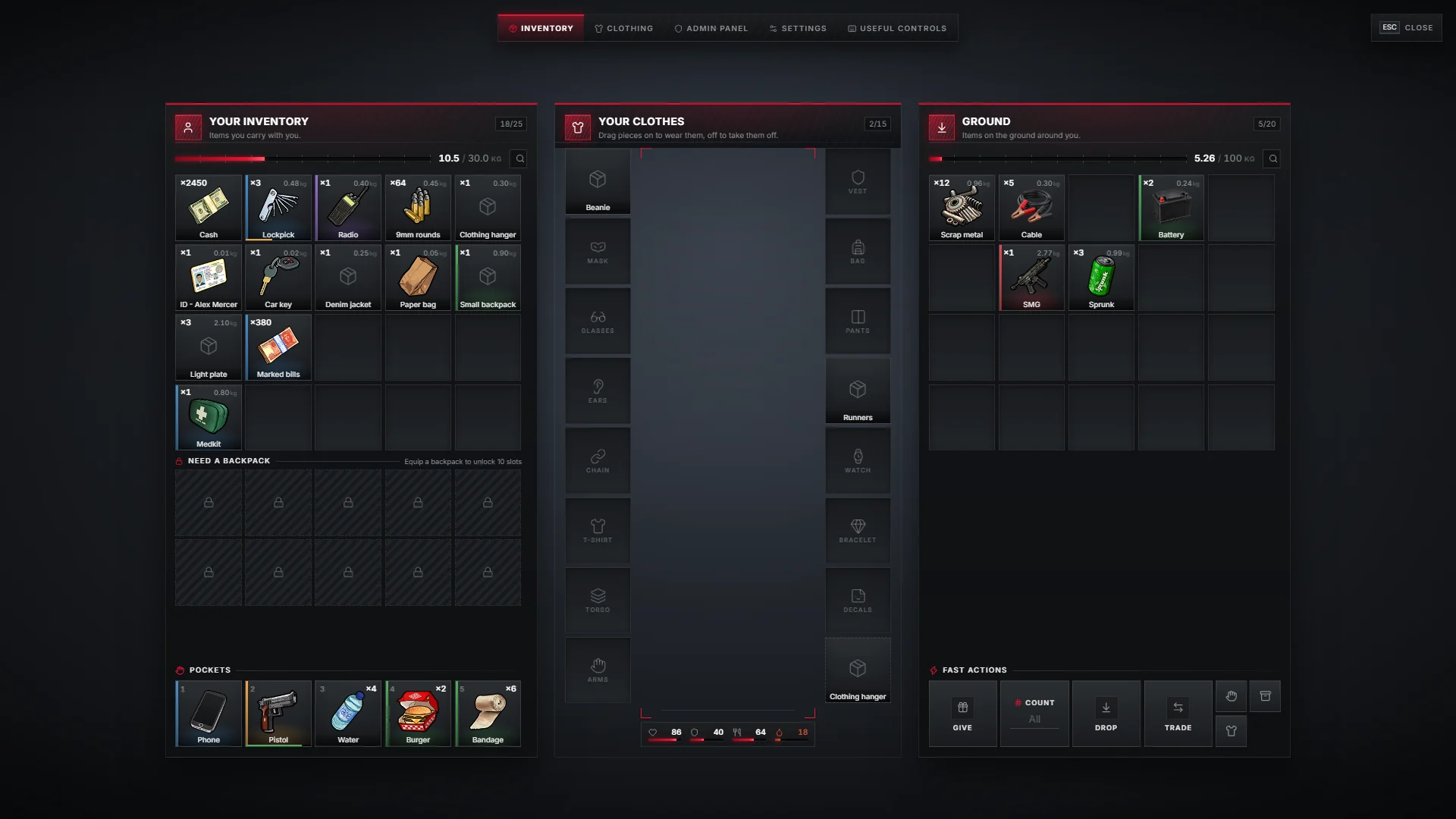
The tabs
| Tab | What it shows |
|---|---|
| INVENTORY | The three columns below |
| CLOTHING | The wardrobe list of worn pieces, your status and outfit actions |
| ADMIN PANEL | Staff only. See Admin panel |
| SETTINGS | Player settings, saved per player |
| USEFUL CONTROLS | Every mouse and keyboard shortcut |
ESC at the top right closes the console.
The three columns
Your inventory
The left column holds the weight bar, a search field, the grid and the pockets. The counter in the header shows used and available slots.
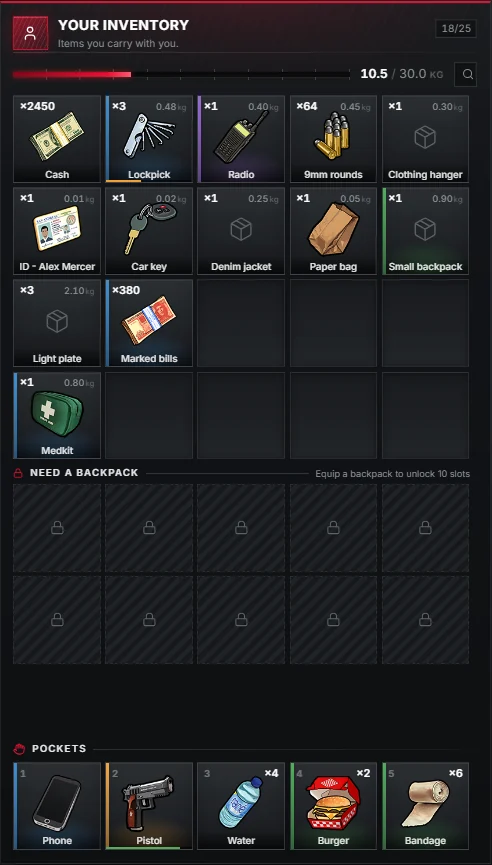
Every slot shows the amount, the weight and a coloured stripe for the item's rarity. Hover a slot for the tooltip: metadata, serial number, durability, armour plates and the contents of a mini stash.
Your clothes
The middle column shows what you wear, in two stacks around your character. The camera frames your character into this column. Health, armour, hunger and thirst sit underneath.
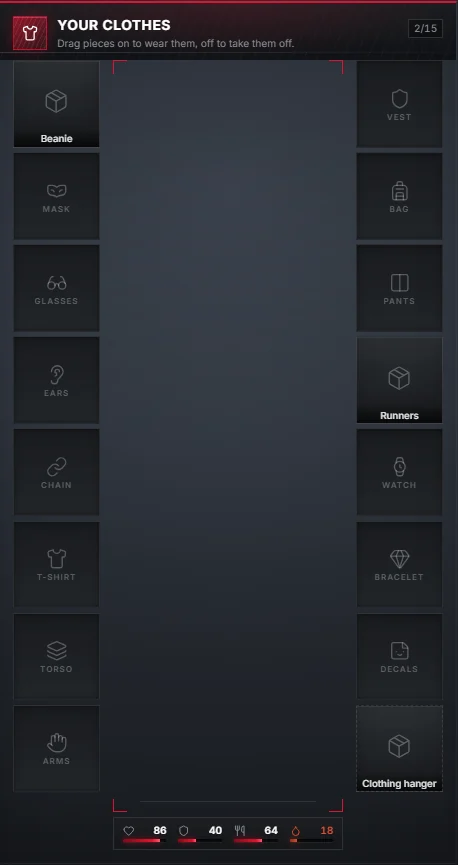
See Clothing for how dressing works.
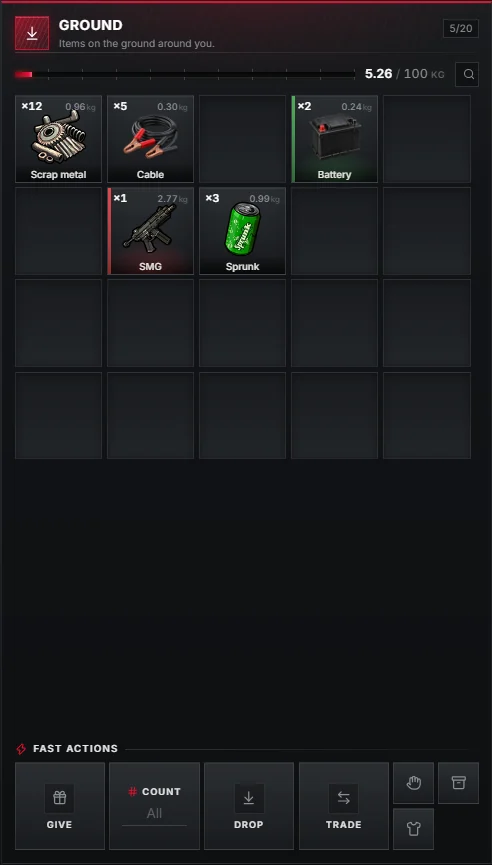
Other inventory
The right column shows whatever you opened: the ground, a player, a stash, a trunk, a glovebox, a shop or a crafting bench. FAST ACTIONS at the bottom are buttons for Give, Drop, Trade, hands up, undress and the hanger, plus the COUNT field.
Context menu
Right-click a slot for the context menu: use, give, drop, attachments, copy serial, rename, change description, throw, trade, open container, and insert or remove a plate. Admins can switch actions such as renaming off for the whole server.
Useful controls
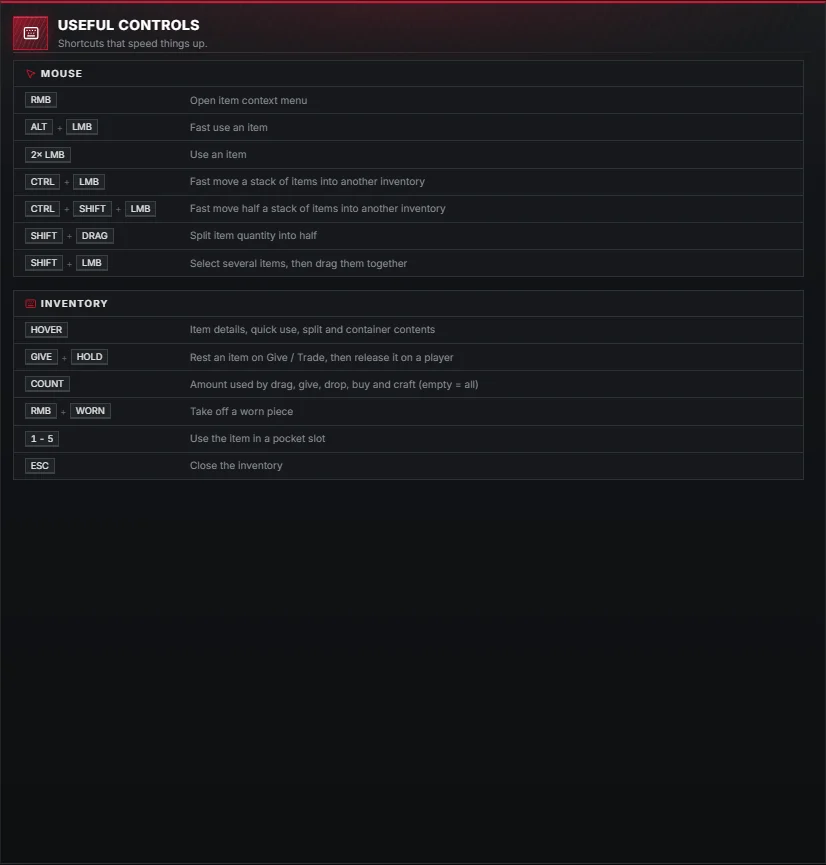
| Shortcut | Action |
|---|---|
RMB | Open the item context menu |
ALT + LMB | Fast use an item |
Double LMB | Use an item |
CTRL + LMB | Fast move a stack into the other inventory |
CTRL + SHIFT + LMB | Fast move half a stack into the other inventory |
SHIFT + drag | Split the stack in half |
SHIFT + LMB | Select several slots, then drag them together |
| Hover | Item details, quick use, split and container contents |
| GIVE + hold | Rest an item on Give or Trade, then release it on a player |
RMB on a worn piece | Take it off |
1 – 5 | Use the item in that pocket |
ESC | Close the inventory |
Player settings
Each player tunes the console on the SETTINGS tab. The settings are stored on the player's own client, so they survive restarts and never touch the database.
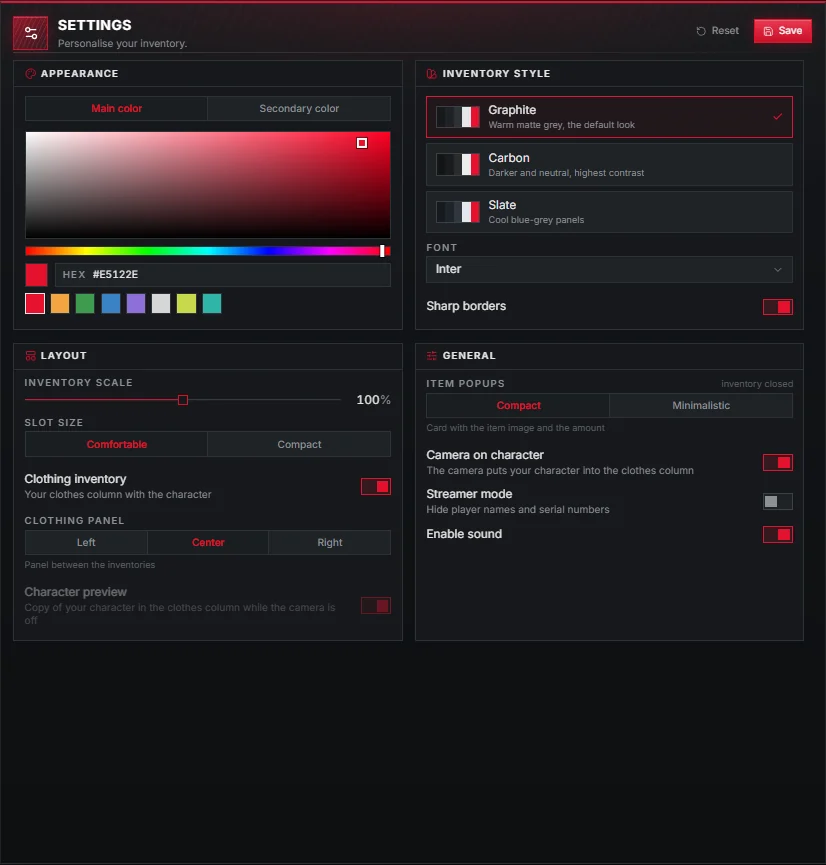
| Setting | Options |
|---|---|
| Main and secondary colour | Any colour; Obsi red #E5122E by default |
| Inventory style | Graphite (default), Carbon, Slate |
| Font | Inter or Segoe UI |
| Sharp borders | Square or slightly rounded corners |
| Inventory scale | 70 % to 130 % |
| Slot size | Comfortable or Compact |
| Clothing inventory | Show or hide the clothes column |
| Clothing panel | Left, Center or Right |
| Character preview | A copy of your character in the clothes column while the camera is off |
| Camera on character | The camera frames your character into the clothes column |
| Item popups | Compact or Minimalistic notifications while the inventory is closed |
| Streamer mode | Hides player names and serial numbers |
| Enable sound | Interface sounds |
New players start with the defaults from data/obsi/core.lua; see Configuration.